
Alta Star Forms Online does not print directly. It generates a PDF of your filled-in forms, and you print, save or email the PDF.
Generate a PDF
- Click PDF/E-sign on the menu bar.
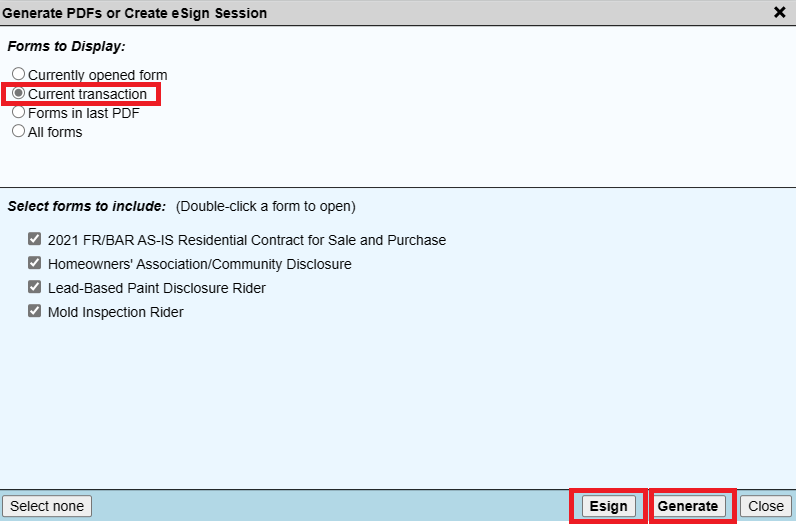
- Choose which forms to include:
- Current transaction lists the forms with entries in the open file. Uncheck any you do not want.
- Currently opened form includes only the form on screen.
- All forms lets you pick any form, including blank ones.
- Select from Form Group adds a saved group of forms.
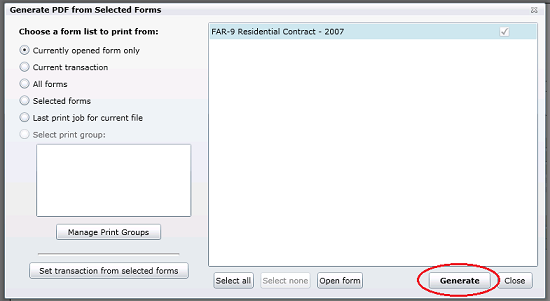
- Click Generate.
- If the file has unsaved entries, you are offered Save your current file first.
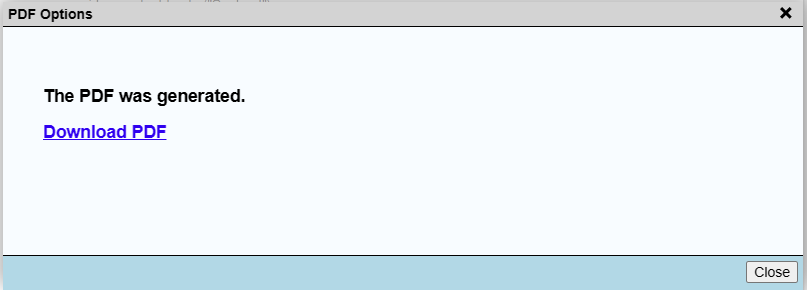
- When "The PDF was generated." appears, click Download PDF.

PDF options
After the PDF is generated, click Download PDF. Depending on your browser's settings, the PDF either opens in a new tab or goes straight to your downloads folder, like any other download.
From there:
- To print, open the PDF and use your PDF viewer's print command.
- To email it, attach the downloaded file in your email program. See Emailing and Revising PDFs.
Keep your PDFs
Tip: Forms Online stores your entries, not your PDFs. Save every PDF you generate to your own device, network folder or cloud storage for your permanent records. The PDFs generated by Forms Online serve as your permanent records, because the PDFs are what your transaction actually uses and therefore are your official source documents.
Electronic signatures
To send the selected forms for electronic signature instead of downloading them, click E-sign in the PDF/E-sign window (included with Premium Edition). See E-sign Overview.