
Most sessions need none of these. They are there for the transaction that calls for something more.
Signer options
When you add or edit a signer, the Add Recipient dialog has six switches. All are off unless you switch them on.
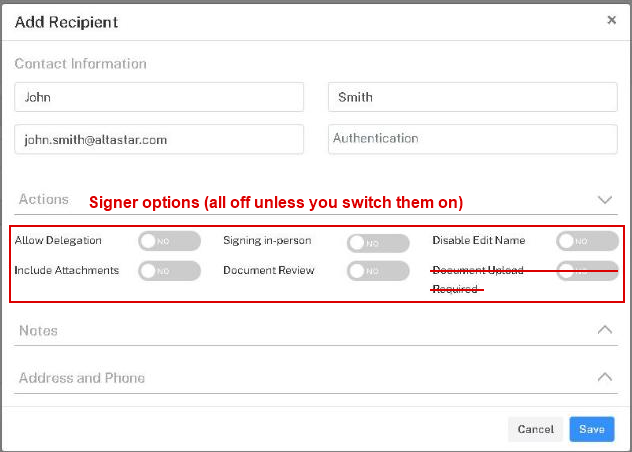
- Allow Delegation. The signer may hand the signing over to someone else.
- Signing in-person. The signer signs electronically in the presence of the sender or another authorized witness.
- Disable Edit Name. The signer cannot change their name during signing.
- Include Attachments. Completed documents are sent as email attachments.
- Document Review. The signer must scroll through every document before signing.
- Document Upload Required. Not used with Forms Online sessions. Leave it off.
To change the options of a signer already listed, click the three dots at the end of the signer's row and choose Edit.
Signer type
Each recipient listed under Recipients has a Type. Open the dropdown list in the Type column to change it.

- Signer. The default. The recipient signs the documents.
- Reviewer. The recipient is invited to look through the documents but does not sign.
- CC-Recipient. The recipient receives a copy of the completed documents and does not sign.