
Open E-sign History
Click E-sign History on the menu bar.

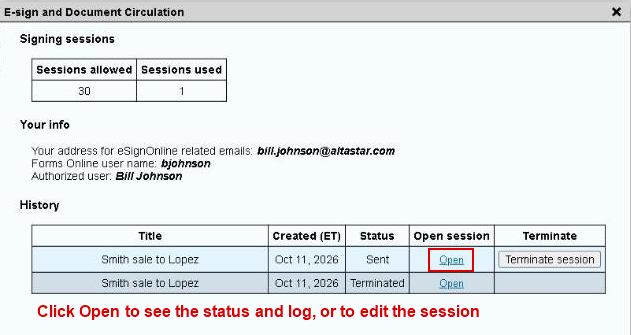
The window lists your signing sessions with their title, time and status, and shows Sessions allowed and Sessions used for your license.
Session status
Each session shows a status such as Draft, Sent, Completed or Terminated.
To end an incomplete session, see Terminating a Session and Credit Policy.
Detailed log
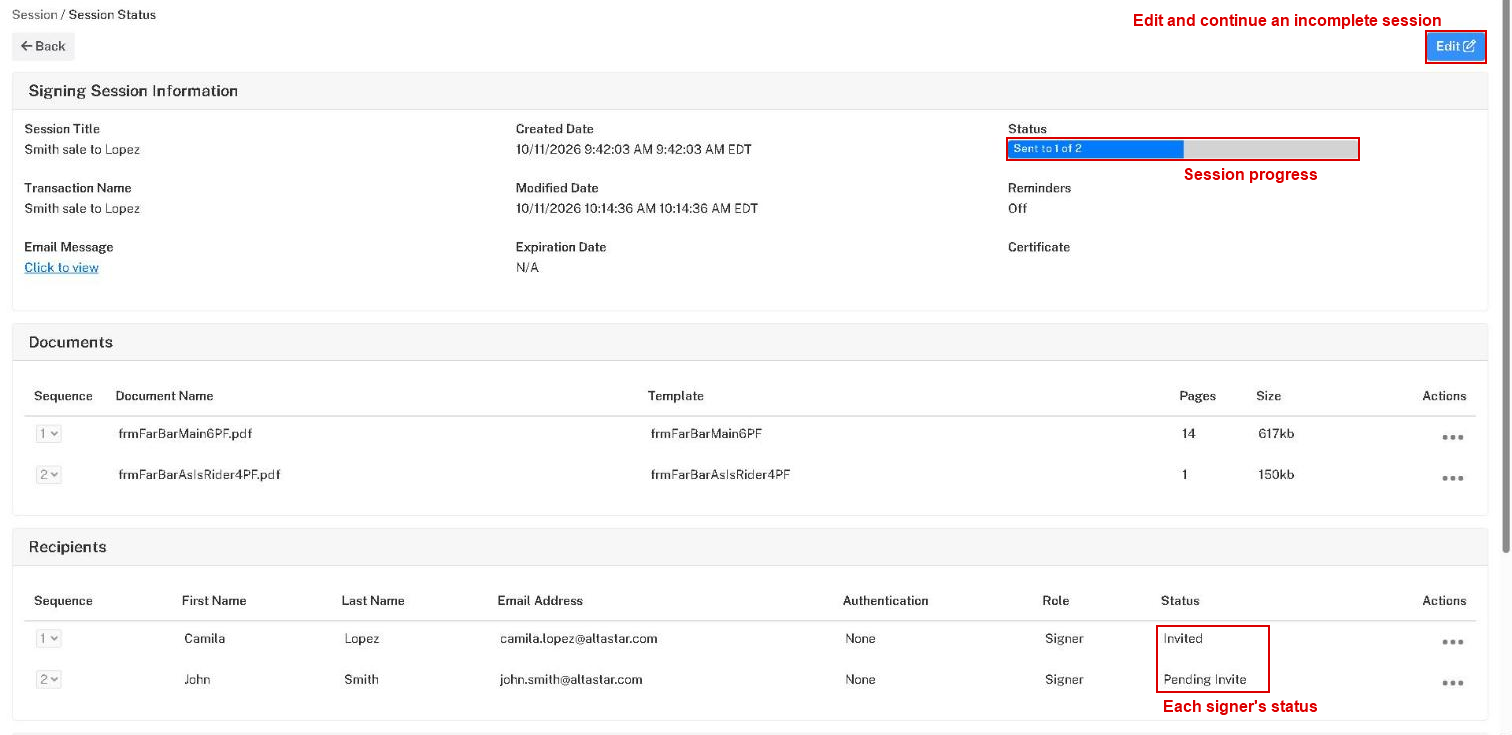
Click the Open link for a session to see its details on the e-sign site, including the status and log of each invitation, sent or still to be sent.
The session status page shows how far the session has got, each signer's status, and the documents. In the example, the first signer has been invited and the second is still pending.
The History at the foot of the page is the log. Every invitation, signature and change is listed with its date and time.

Continue an incomplete session
If a session is incomplete, you may view its status, or edit it and continue where you left off. Open the session from E-sign History. A draft returns you to the configuration page. A sent session opens its status page, where Edit lets you change it. See Editing a Session.
Note: Incomplete sessions may be terminated automatically after 30 days.