
Log in
Go to forms.altastar.com. Enter your User ID and password. If you do not know them, use the lost password link on the login screen. See Logging In.
Find your way around
After login, Alta Star Forms Online shows your default form. The menu buttons across the top handle the main functions:

The status bar at the bottom shows the open file name, whether it has unsaved changes, and the current form. It also has links to the Clause Library and the current transaction.

Pick a form
Click Select Form, choose a category, then double-click the form. To change the form that opens at login, use Settings. See Selecting a Form.
Using riders within a contract file
To fill in a rider or addendum for the same transaction, stay in the same file and use Select Form again. Do not start a new file. If the rider is in the same file as the contract, some common entries, such as the parties' names, street address, and legal description, transfer automatically. See Riders and Addenda.
Save
Click Save. The first time, you choose a file name. Keep the browser tab open until you have saved.
Warning: Closing the browser tab can discard unsaved entries. Auto-save keeps a temporary copy in your browser, which is generally reliable but is not guaranteed. See Saving and Auto-save.
Get a PDF, print, or send for signature
- Click PDF/E-sign.
- Choose Current transaction to list the forms with entries in the open file. Uncheck any you do not want.
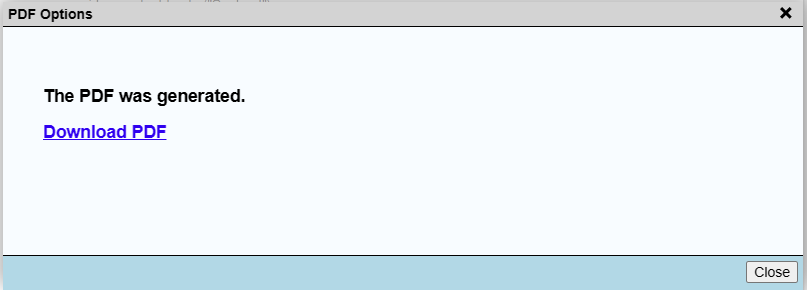
- Click Generate, then Download PDF. The PDF lands in your browser's downloads folder.

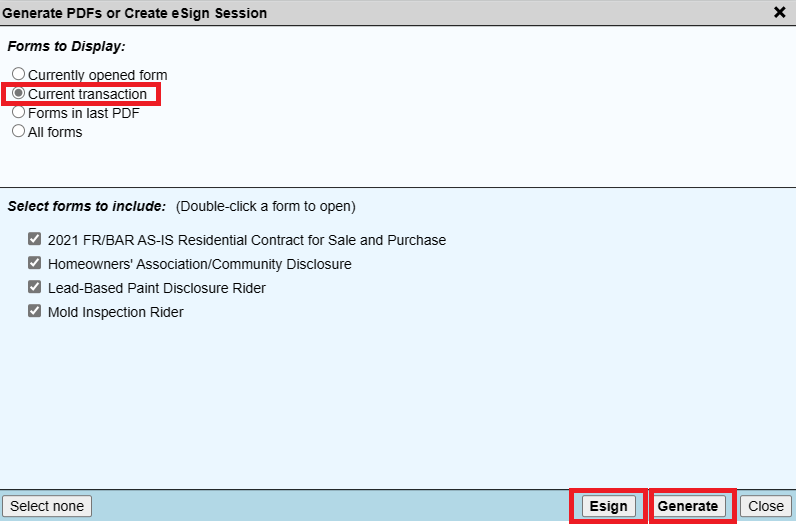
To have the selected forms signed electronically (included with Premium Edition), click E-sign instead of Generate. See E-sign Overview.
Tip: Forms Online stores your entries, not your PDFs. Save each downloaded PDF to your own device, network folder or cloud storage for your records. The PDFs generated by Forms Online serve as your permanent records, because the PDFs are what your transaction actually uses and therefore are your official source documents.