
You can go back into any session that is not yet complete, whether you left it as a draft or have already sent the invitations.
Open the session from E-sign History
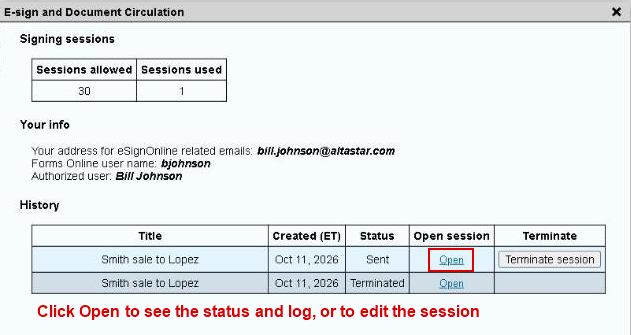
- In Alta Star Forms Online, click E-sign History on the menu bar.
- Find the session in the list and click its Open link. The session opens on the e-sign site in a new browser tab.

Start editing
What you see depends on the session's status.
- Draft. The configuration page opens where you left off.
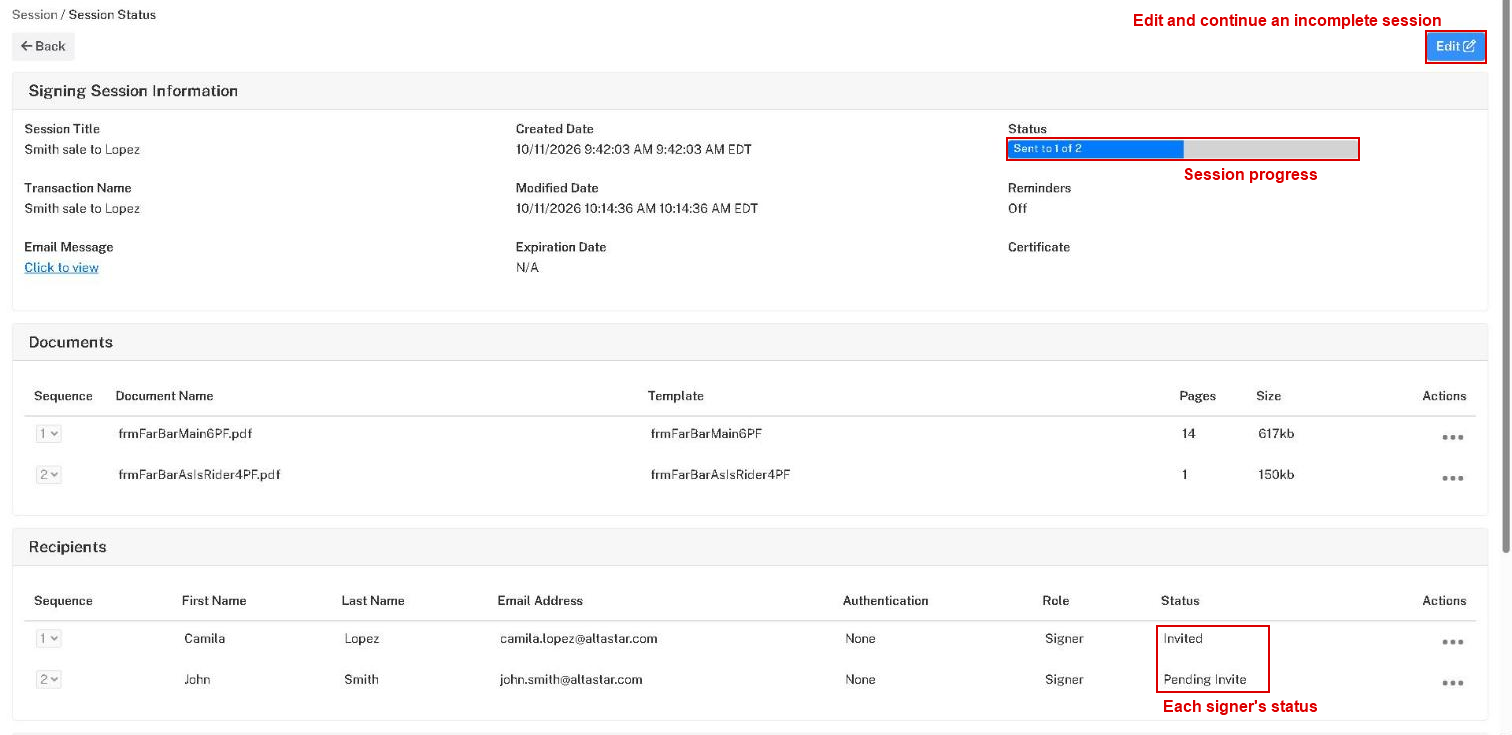
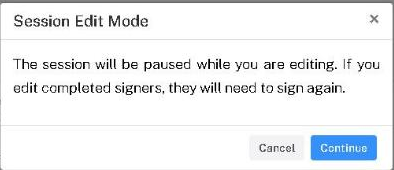
- Sent. The session status page opens. Click Edit at the top right. A Session Edit Mode prompt explains that the session is paused while you edit, and that any signer who has already completed signing will have to sign again. Click Next or Save.
Make your changes
The configuration page works as it did when you set the session up. See Configuring E-sign Sessions.
- To change a signer's name, email address, security option or signer options, click the three dots at the end of the signer's row and choose Edit.
- To add a signer, use the add-recipient field. To remove one, choose Delete from the three dots.
- To add a document, use the Documents section. See Adding Custom PDF.
Finish editing
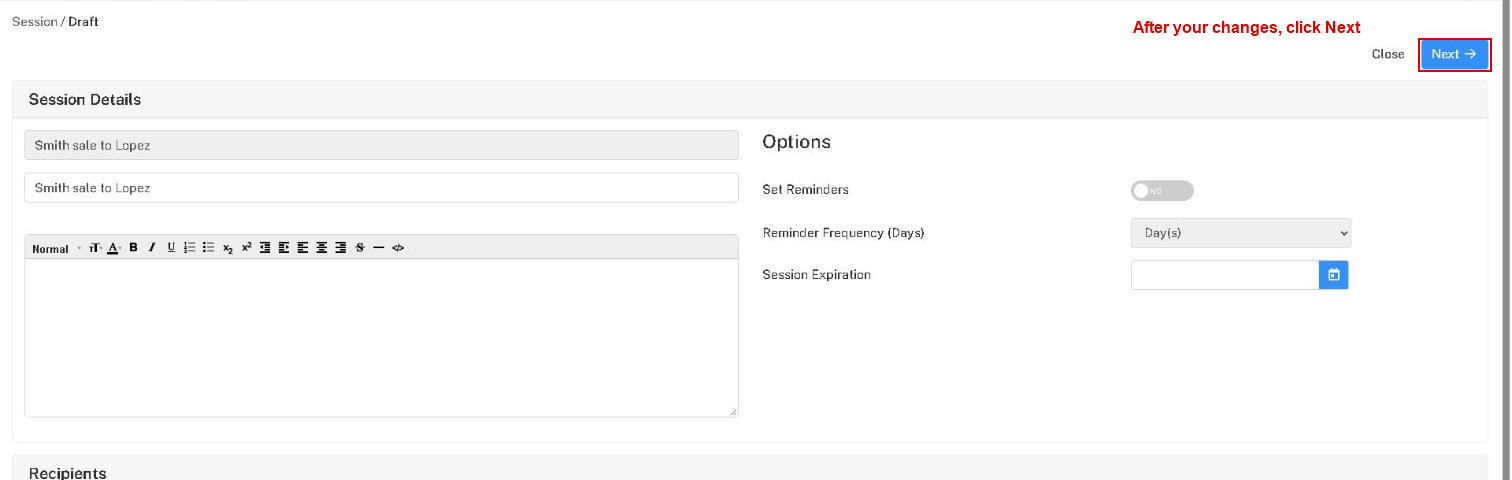
After making your changes, click Next, Save or Send, whichever appears at the top right of the screen you are on, until the session status page opens.
- On the configuration page the button is Next.
- On the preview page it is Save for a session that was already sent, or Send for a draft.
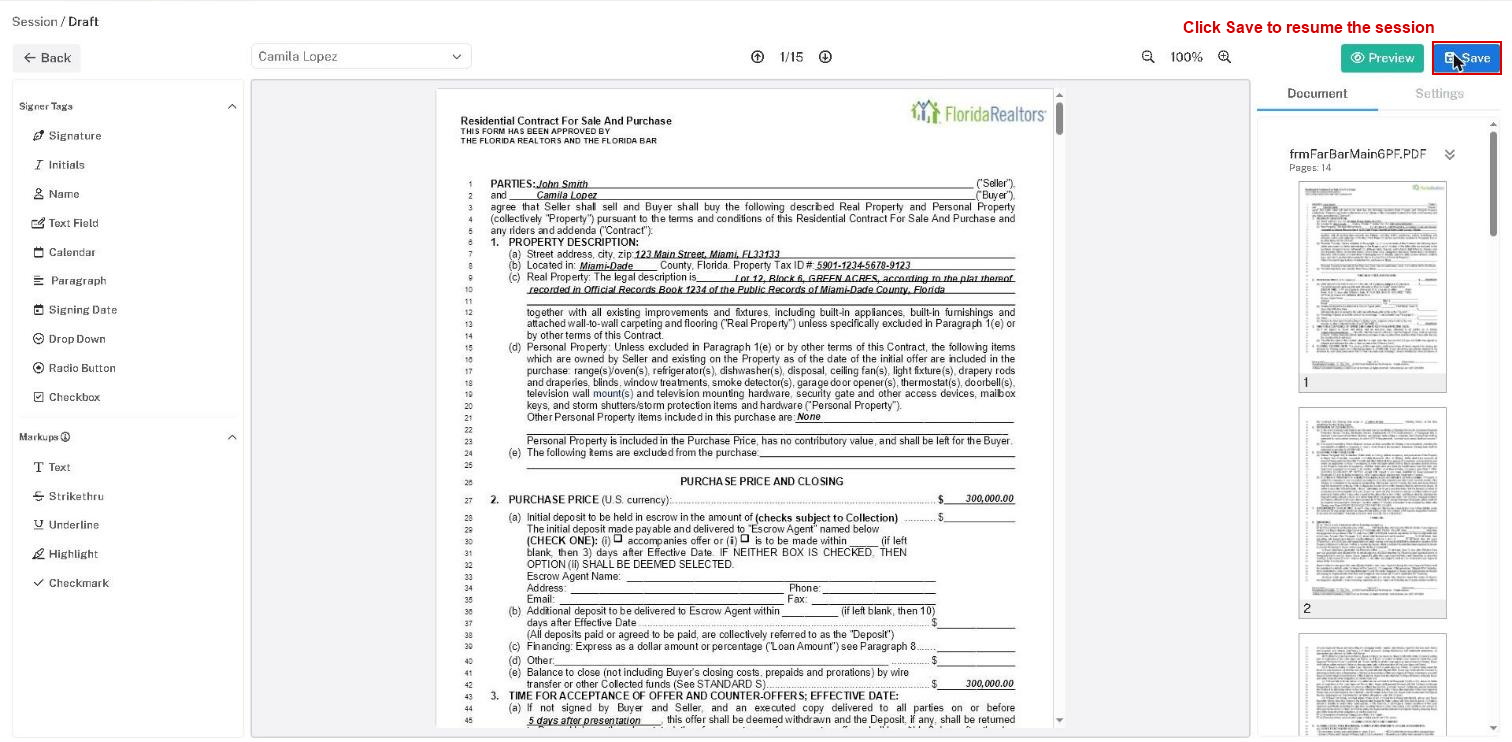
A session that was sent returns to Sent, and its log records that it was edited.
Warning: If you close the browser tab or click Close instead, a sent session stays Paused and no signer can sign until you reopen it using the Forms Online E-sign History window and finish the edit.